
DFM Realtime Studio
Realtime views, trends, A/B tests and title/thumbnail changes for our client channels, plus every change logged automatically in our Turso database so you can prompt it with Claude.
It appears in Chrome by itself once you're signed in with your @dragonfruitmedia.co account, and updates on its own. Not there? Ping Mohamed.
Requirements
Google Chrome
This only runs as a Chrome extension — it doesn't work in Safari, Firefox, or other Chromium browsers like Edge or Arc.
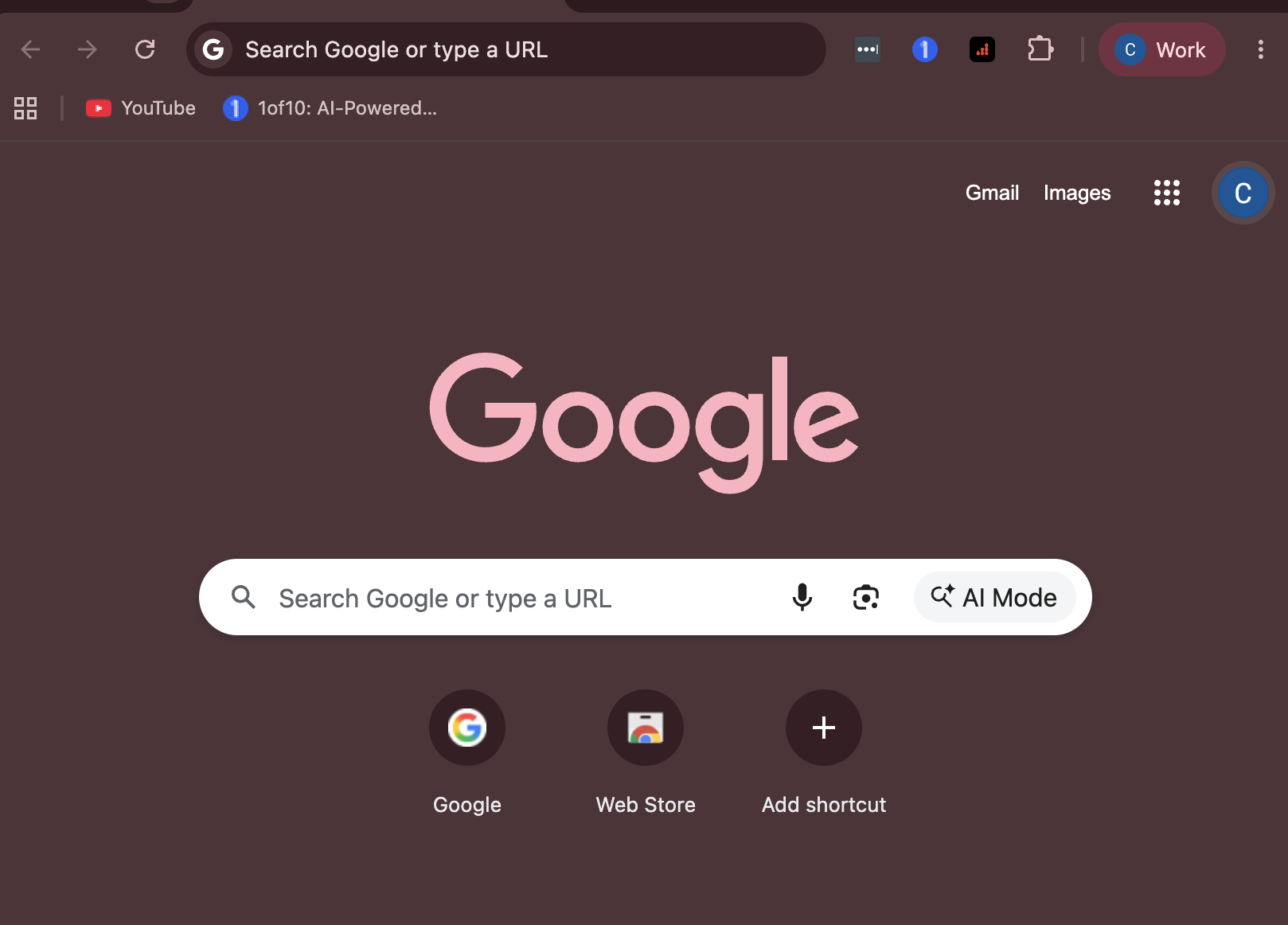
Your Chrome profile signed in with your own @dragonfruitmedia.co account
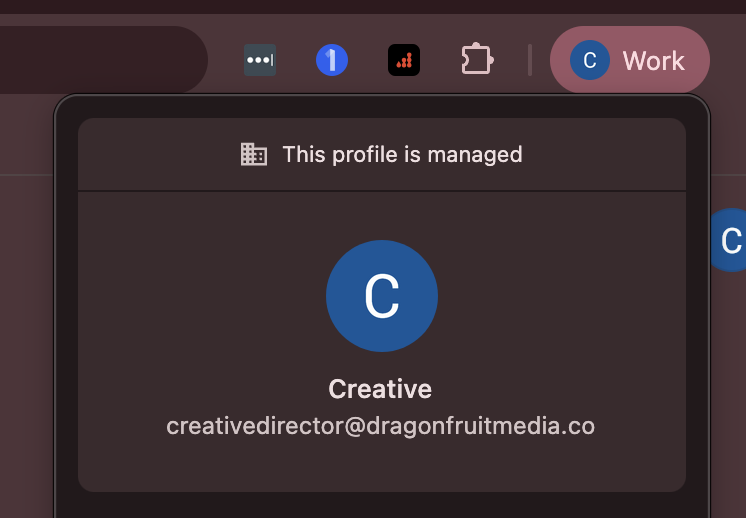
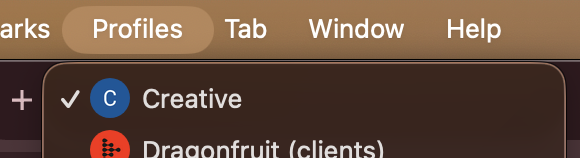
The extension authenticates as whoever the Chrome profile itself is signed in as — that has to be your personal account, not a shared one. Click the profile chip at the top right of Chrome: it should say This profile is managed and show your own address. If you have several Chrome profiles, pick the one signed in as you (Chrome menu → Profiles).
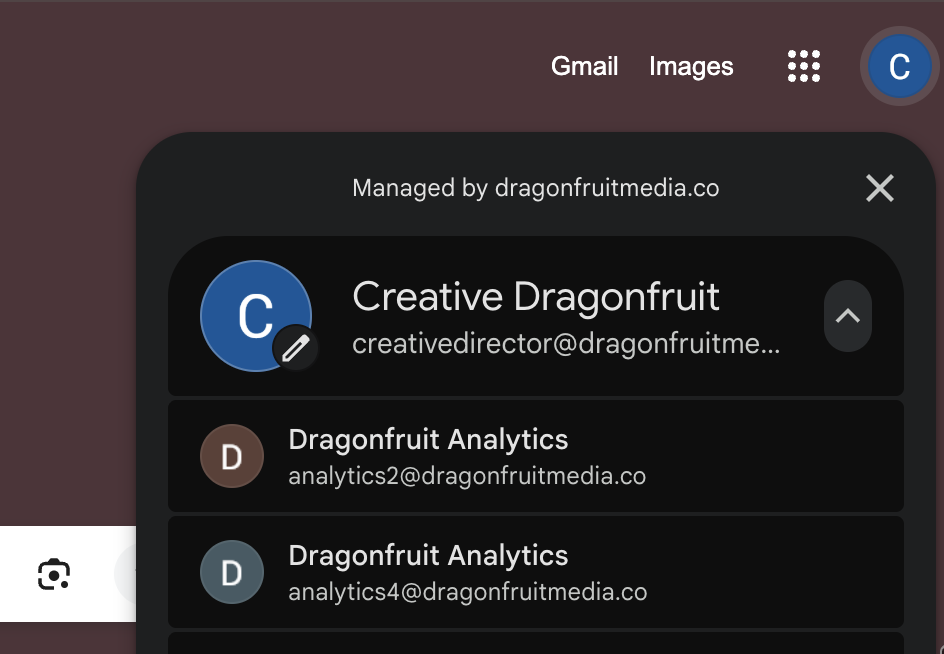
Also signed into analytics2@ and analytics4@ dragonfruitmedia.co
Client channels are delegated to these shared "Dragonfruit Analytics" accounts, so YouTube Studio needs them signed in too. Add them as additional Google accounts in the same browser — open google.com, click your avatar at the top right → Add another account. Your own account stays first; the two Analytics accounts sit underneath it. Never make them the profile account, and never sign in as them in place of yourself.
Using it
Find it in the toolbar
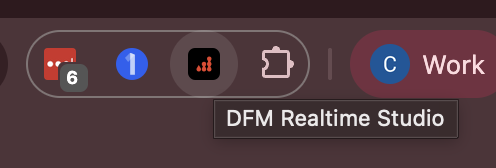
It's the red Dragonfruit icon at the top right of Chrome, next to the extensions puzzle piece — hover it and the tooltip says DFM Realtime Studio. Click it to open the extension. The small badge on the icon is its only alert: red = how many tracked videos are trending down, blue +N = new uploads you haven't looked at yet, orange = A/B tests running.
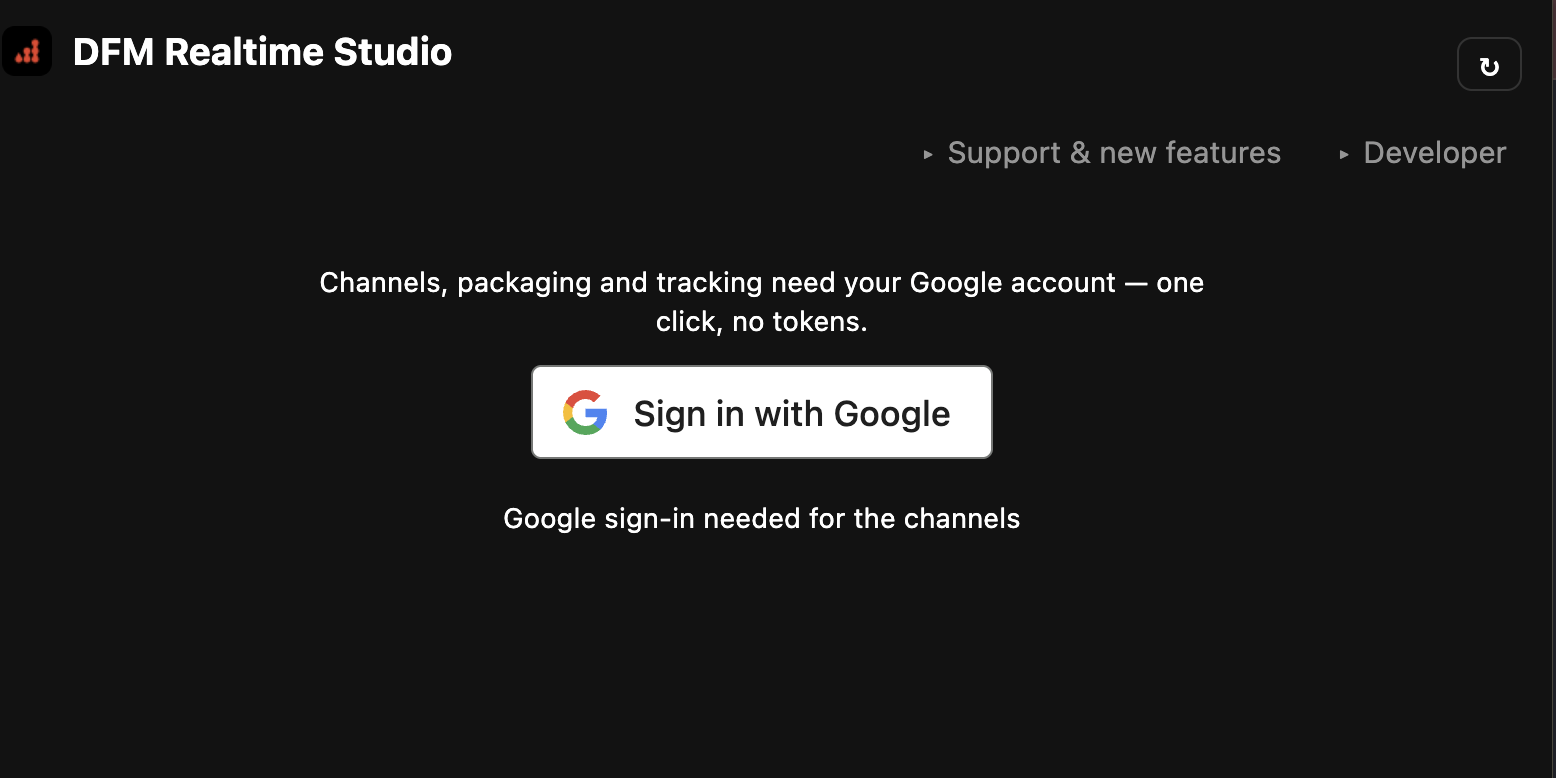
Sign in with your @dragonfruitmedia.co Google account
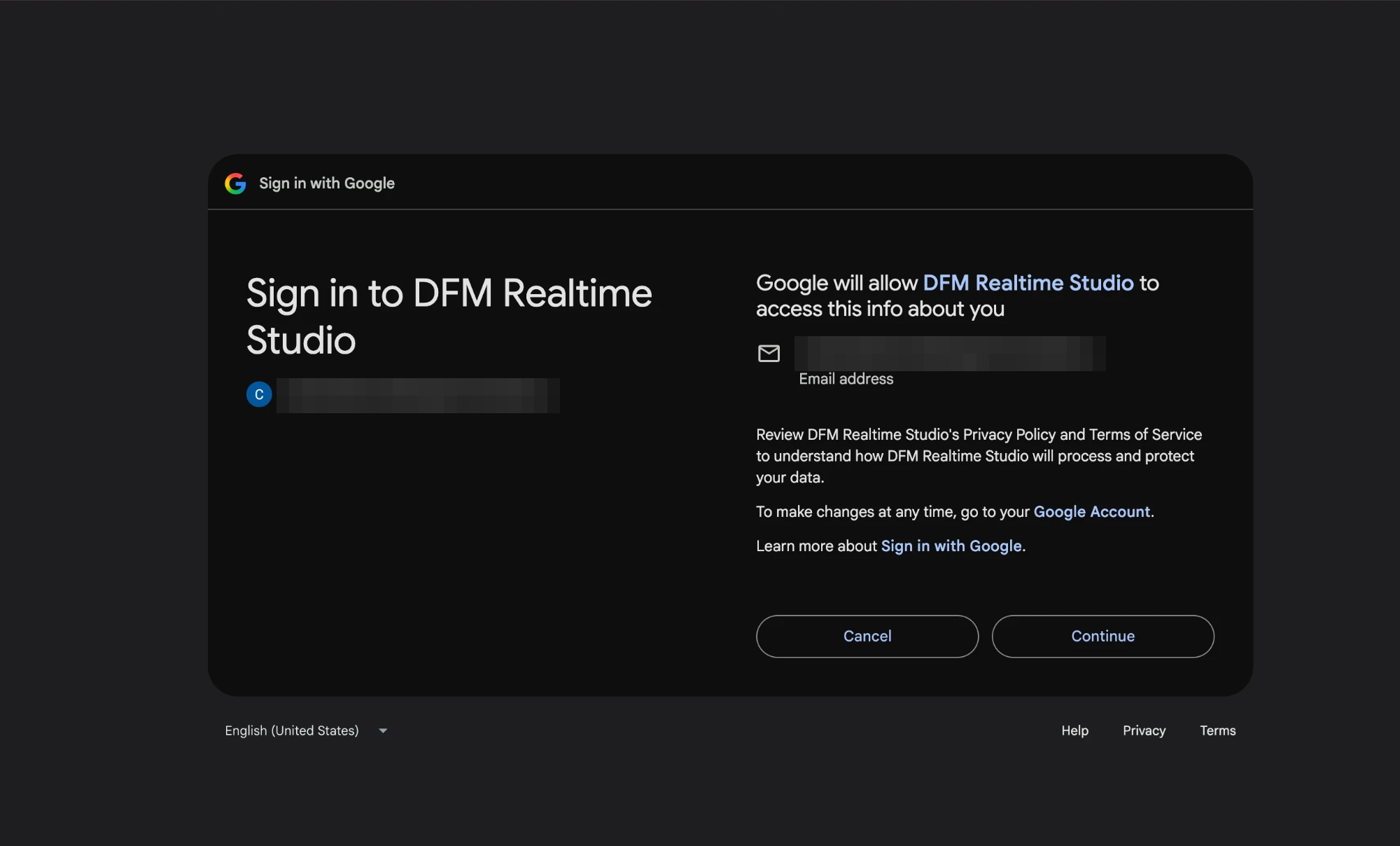
The first time you open it you'll see a single Sign in with Google button — press it. Google then shows a consent screen for DFM Realtime Studio with your own address on it: check it's your @dragonfruitmedia.co account (not an Analytics one), then press Continue. That's the whole setup — no tokens to paste, nothing to configure.
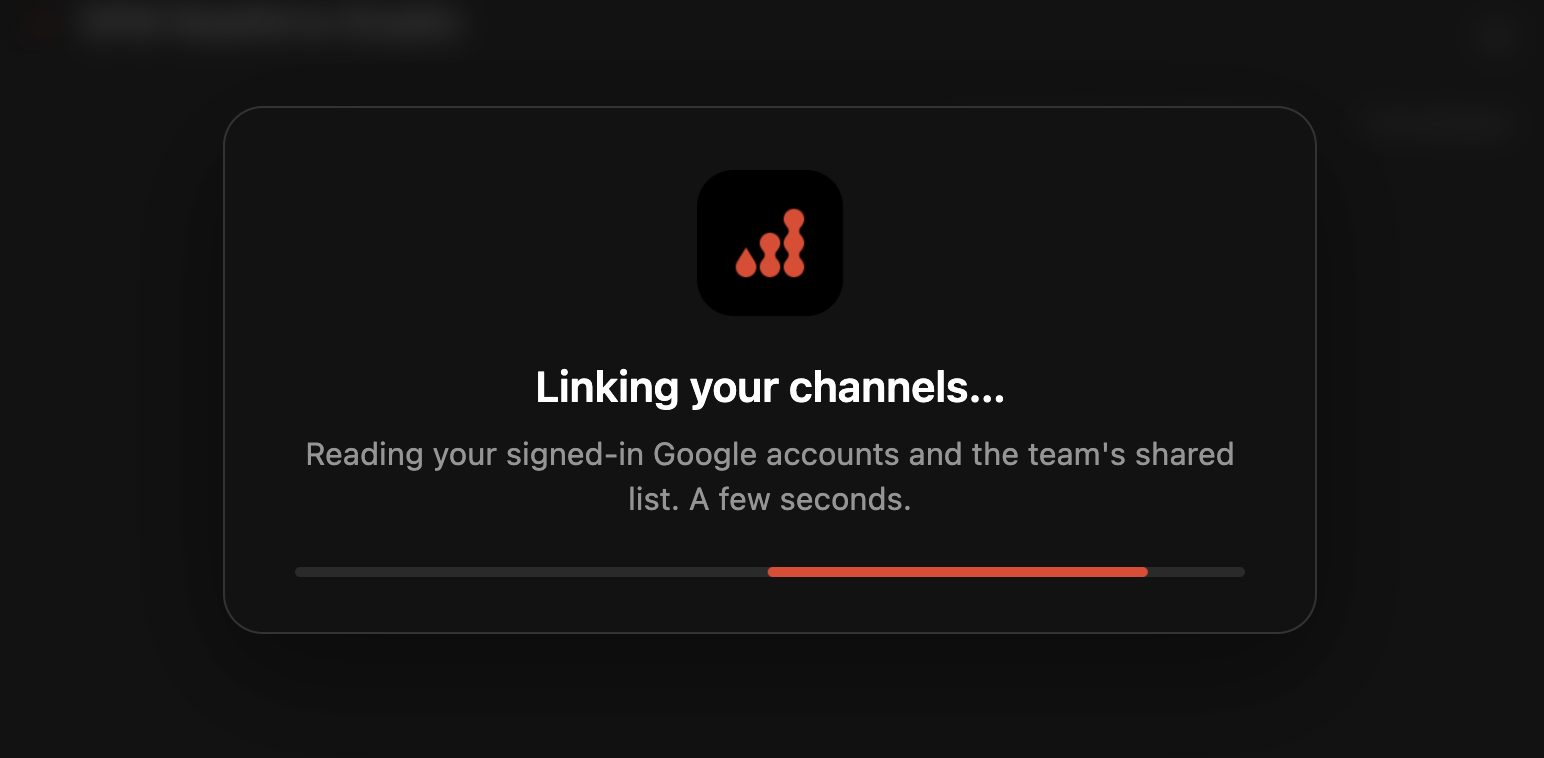
Wait for "Linking your channels…"
Right after you sign in, the extension reads your signed-in Google accounts and the team's shared list. This takes about 30 seconds — leave the popup open and wait for it to finish (if you close it, you'll just see this screen again next time you open it). If it turns into a prompt listing Google accounts to add, that's requirement 3 above — sign into the analytics accounts it names, then press ↻.
Add your channels
Once linked, every client channel from the ClickUp Client Database is laid out as a grid with its code, name and stage. Press Add on the ones you look after — you can add more or remove any later with the × on its row.
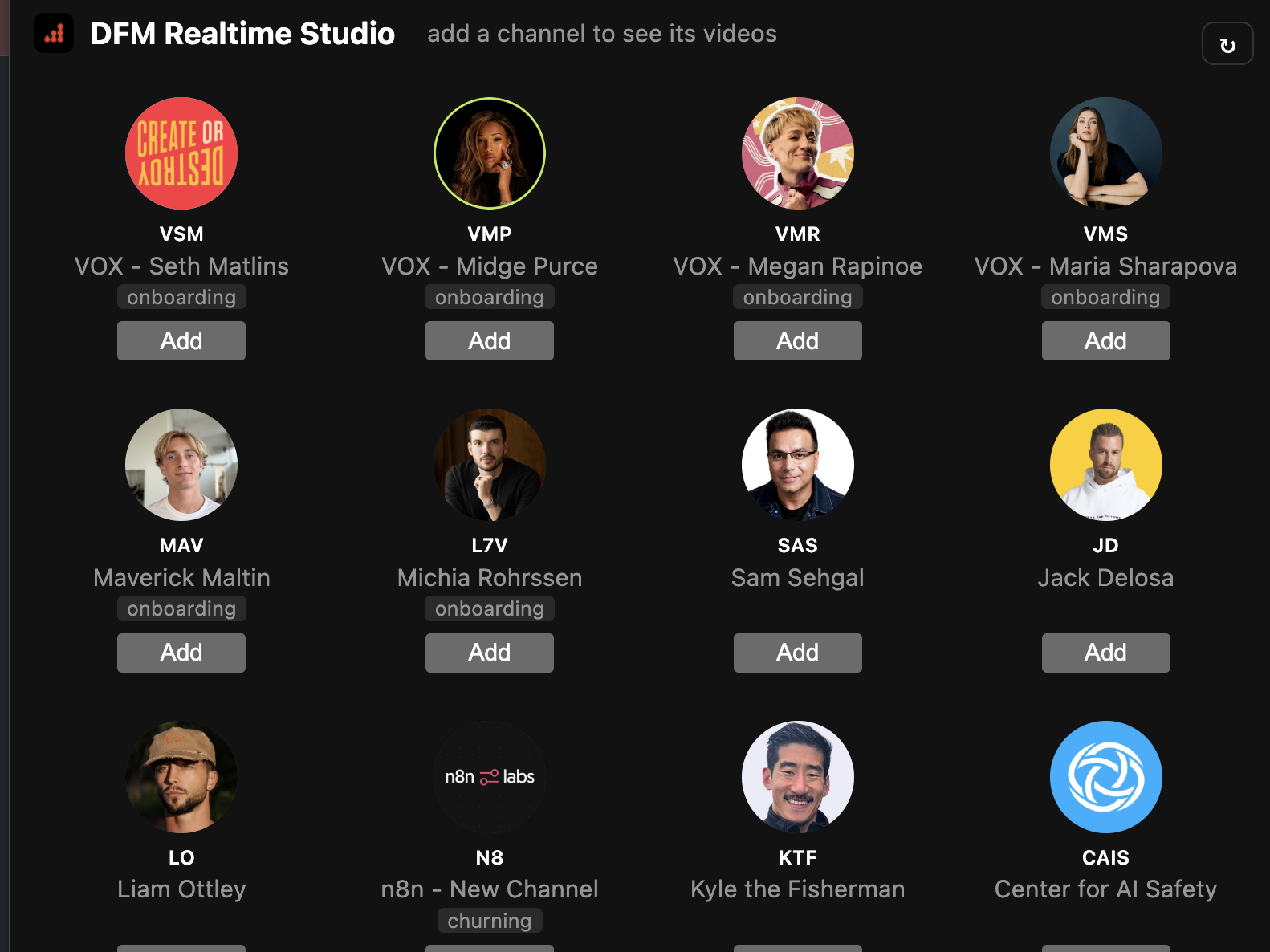
Let the first load finish
An added channel first shows grey placeholder rows with loading… next to its name while the extension fetches its latest long-form videos. That takes a few seconds per channel; then each row fills in with the video, its realtime views, 48-hour trend and any title or thumbnail changes. After that it refreshes itself every 15 minutes — ↻ at the top right forces one.
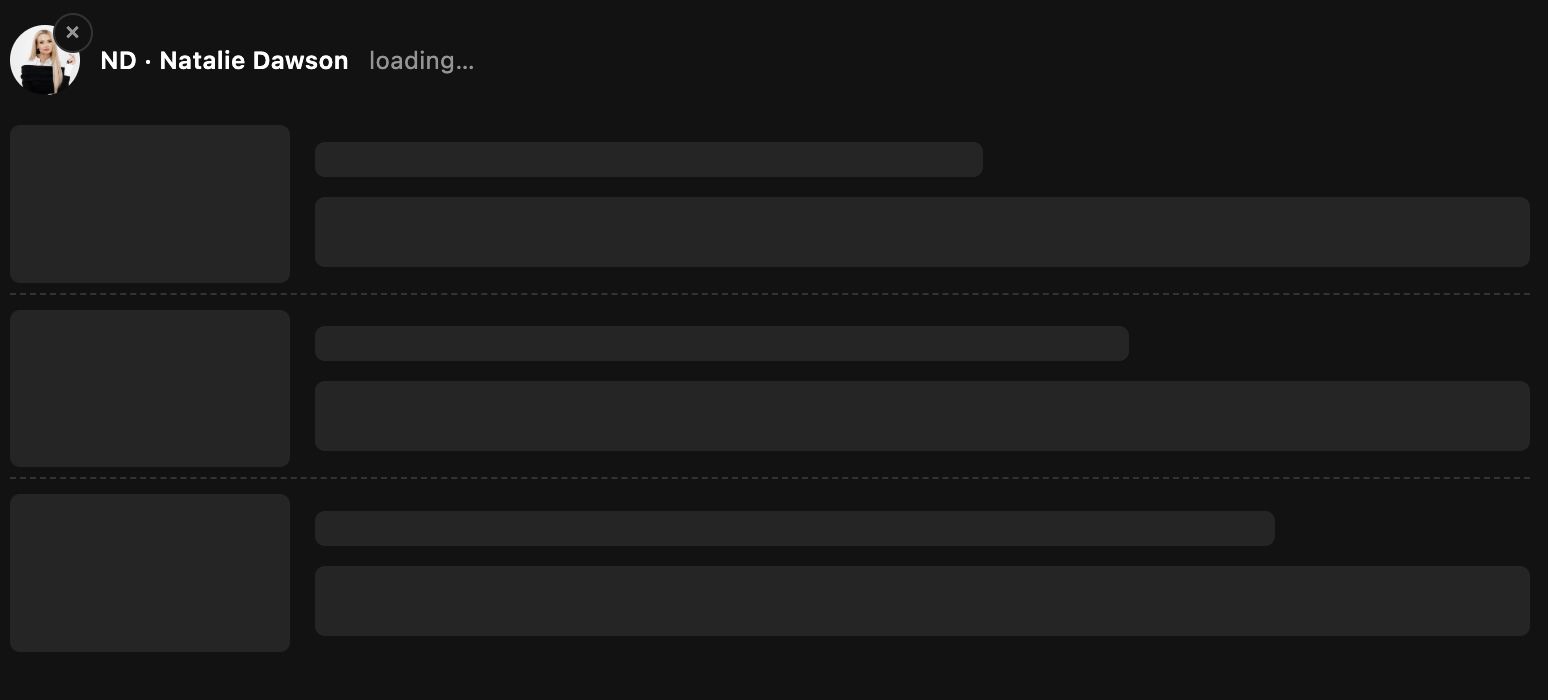
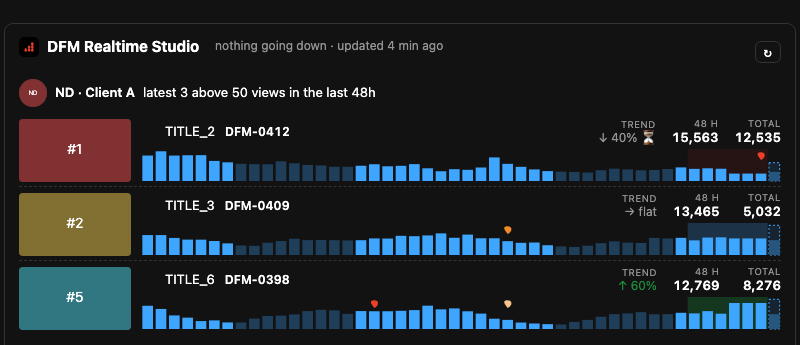
Fix a video that says "no DFM ID"
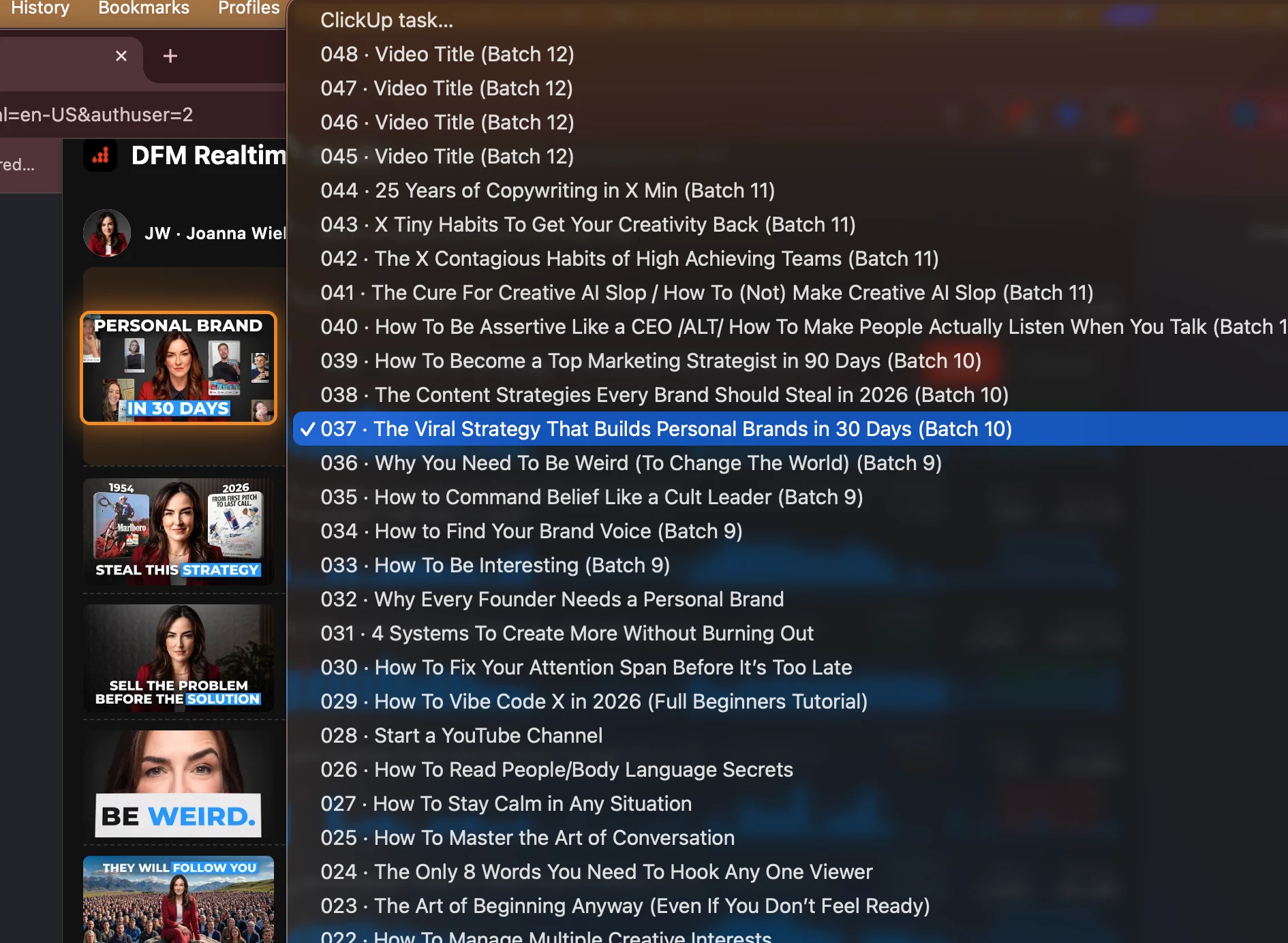
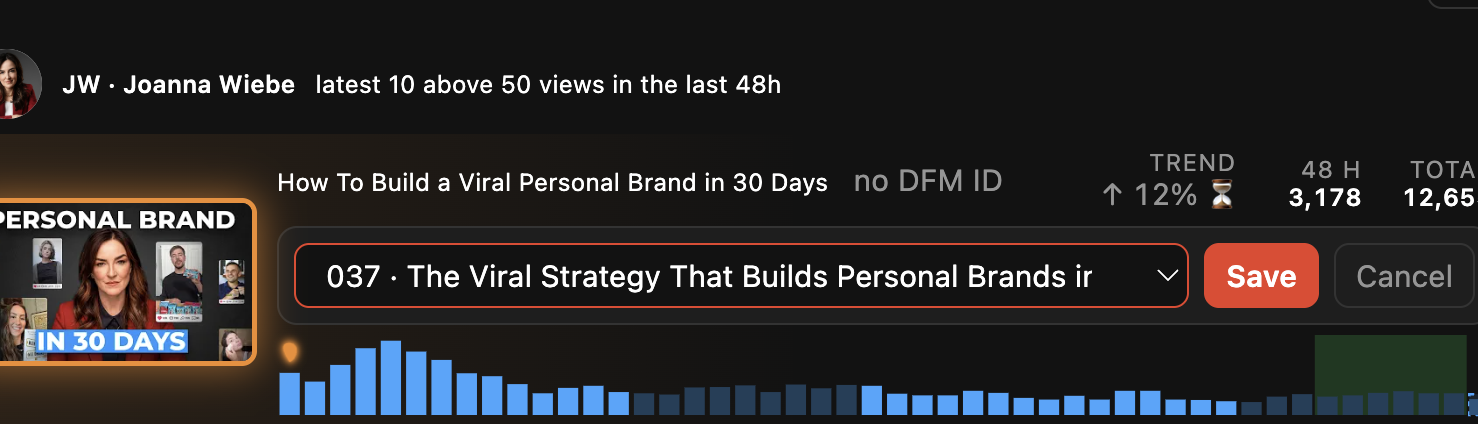
Every video should carry its code (e.g. JW LF 037), matched from its ClickUp task. When the extension can't work out which task a video belongs to, the row shows a grey no DFM ID badge instead. Hover the badge and press edit, pick the right ClickUp task from the list (newest first, with number and title — a likely one is marked ← title match), then Save. The row picks up its code straight away, and the link is shared with the whole team.
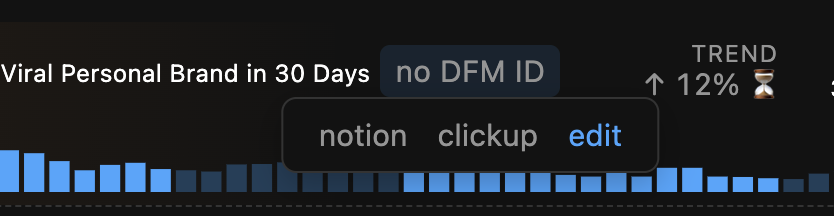

Questions / bugs → @Mohamed on Slack.